1. Log in to your LBank account and tap on the [Profile] icon. Then tap [Security] - [Google Authenticator-Binding].
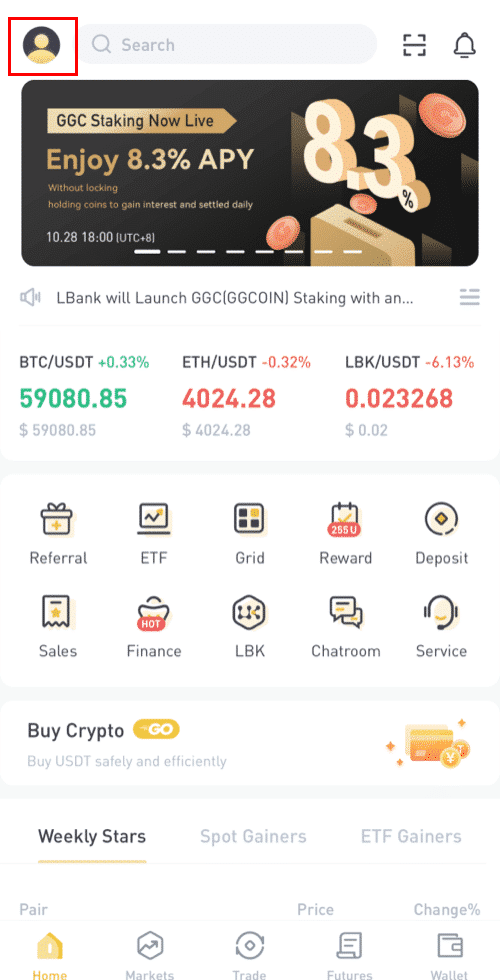
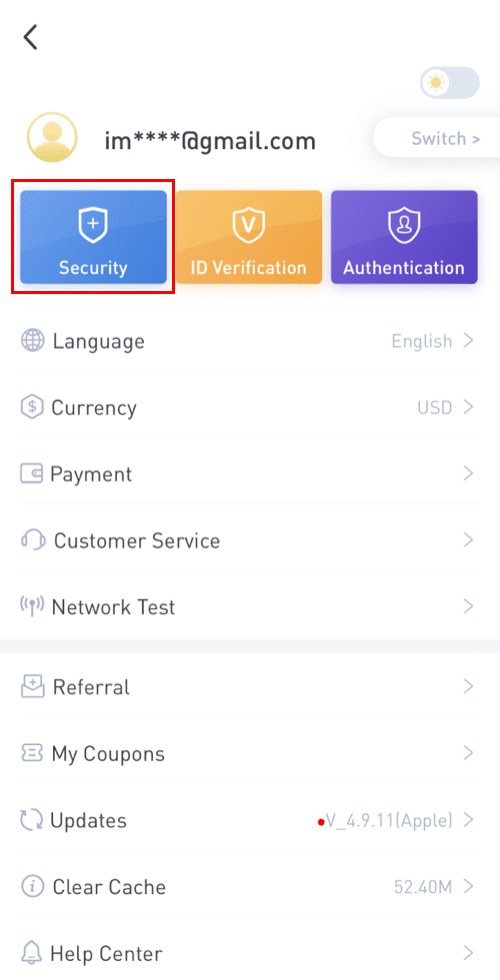
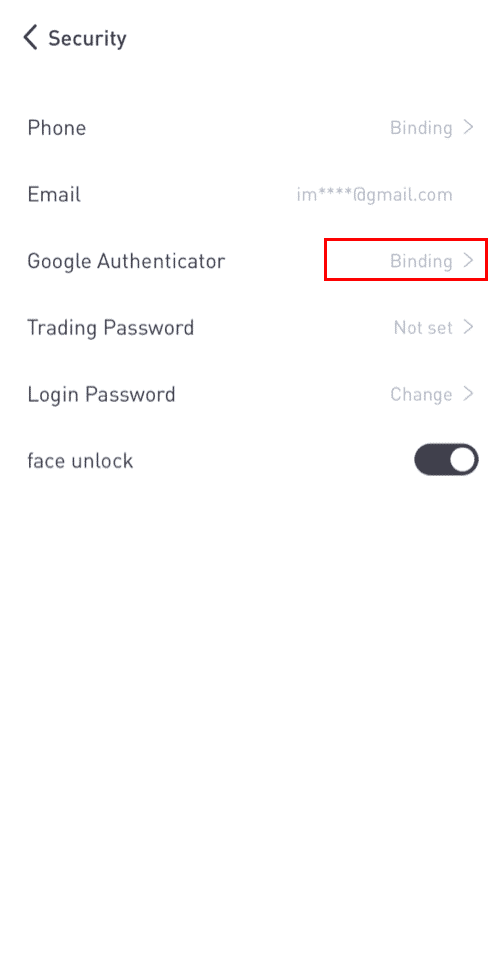
2. If you have yet installed the [Google Authenticator], please download the Google Authenticator App on your device. If you’ve already installed the App, do as follows.
3. You will then see a 16-digit backup key on the screen. Please save this key on paper and store it in a secure location. In case you lose your device, this key will allow you to recover your Google Authenticator account.
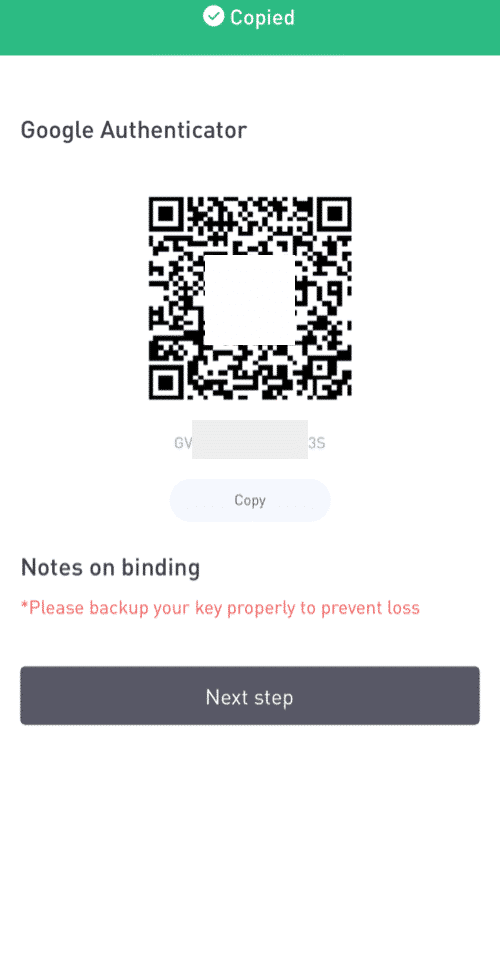
Tap [Copy] and paste the 16-digit key you just saved.
4. Open the Google Authenticator App and tap [Enter a setup key]. Enter your LBank account details and the 16-digit setup key. Tap [Add] and you should see a 6-digit code.
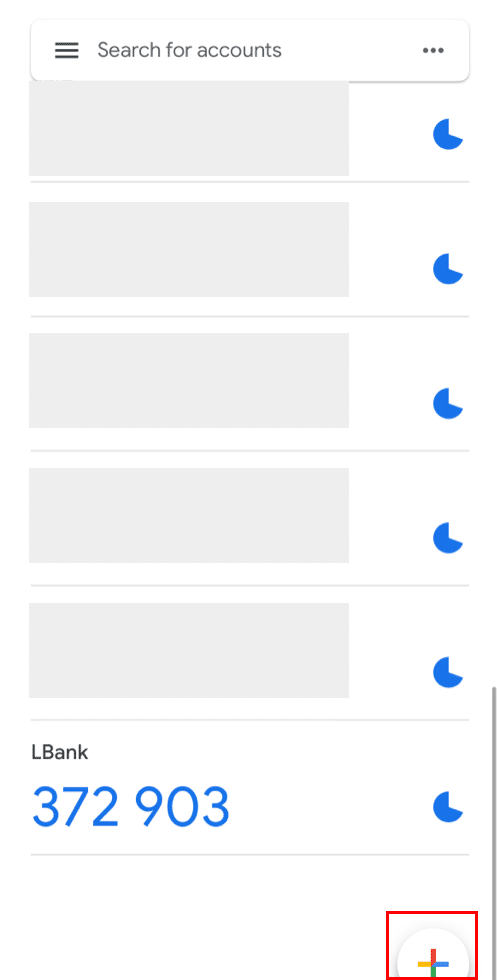
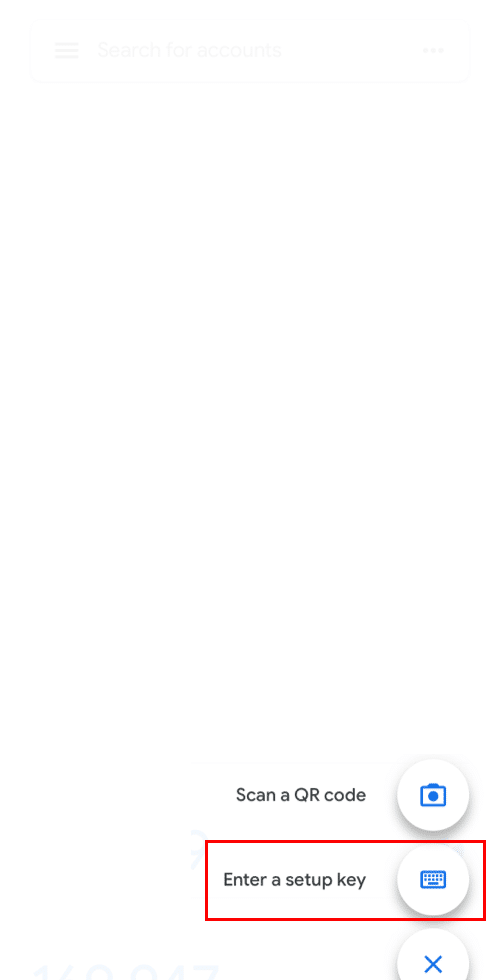
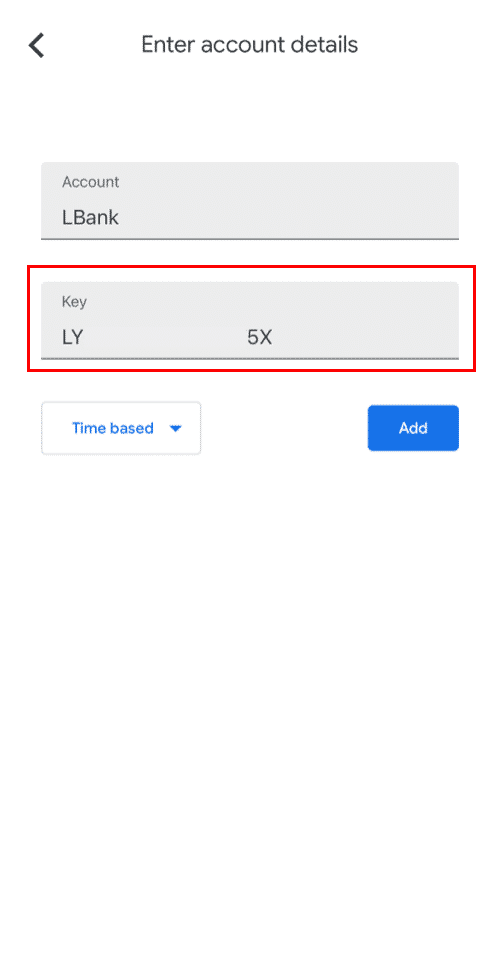
5. Go back to the LBanke App to verify your set-up request with your 2FA devices, including the newly enabled Google Authenticator and the Email verification code.
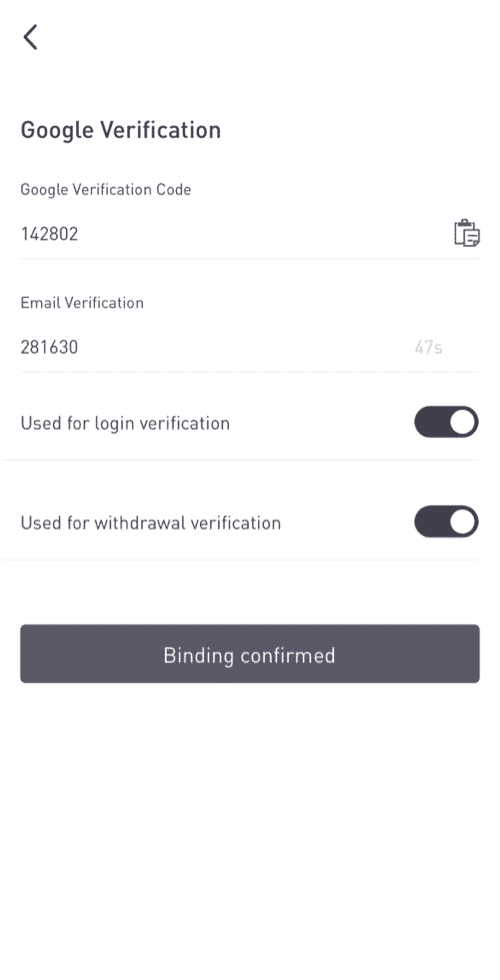
After enabling the Google Authenticator, you will need to enter the verification code when logging in to your account, withdrawing funds, etc. to verify your identity.
If you want to reset your Google Authenticator, please refer to How to Reset Google Authenticator on LBank App.
Click here to download for iOS or Android
LBank community
Find us on:
Telegram: https://t.me/LBank_en
Twitter: https://twitter.com/LBank_Exchange
Facebook: https://www.facebook.com/LBank.info
Medium: https://medium.com/LBank
LinkedIn: https://www.linkedin.com/company/lbank
If you have problems, please contact LBank official email: service@lbank.info, and we will provide sincere, friendly and immediate service for you. We also welcome you to join LBank.info official English community to discuss the latest issue, (Telegram): https://t.me/LBank_en.