Case 1:
If you’ve logged in to your LBank account but have lost access to your Google Authenticator App or stopped working, please turn to our online service for help.
Case 2:
If you can’t access your Google Authenticator app and can’t log in to your LBank account, please turn to our online service for help.
Read More: Unbind Google Authenticator Materials
Case 3.
If your Google Authenticator is working properly, you can change or disable it by following these steps:
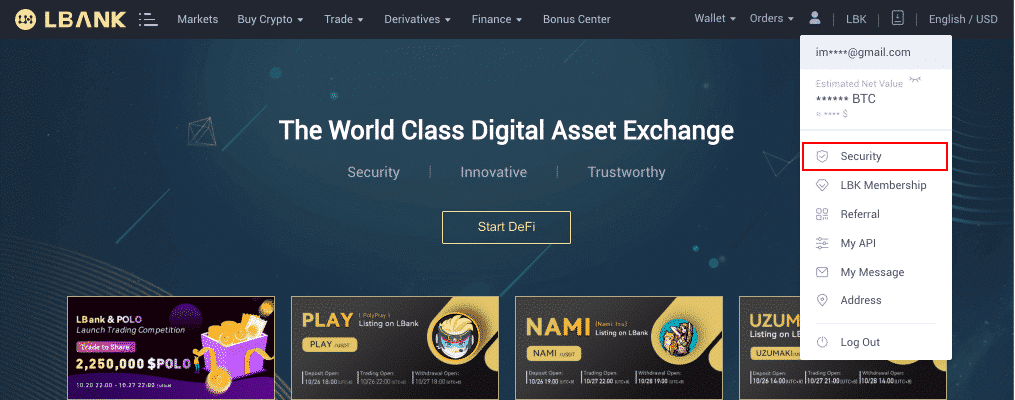
1. Log in to your LBank account and click[Profile] - [Security].
2. Next to [Google Authentication], click [Modify] to directly replace your existing Google Authenticator.
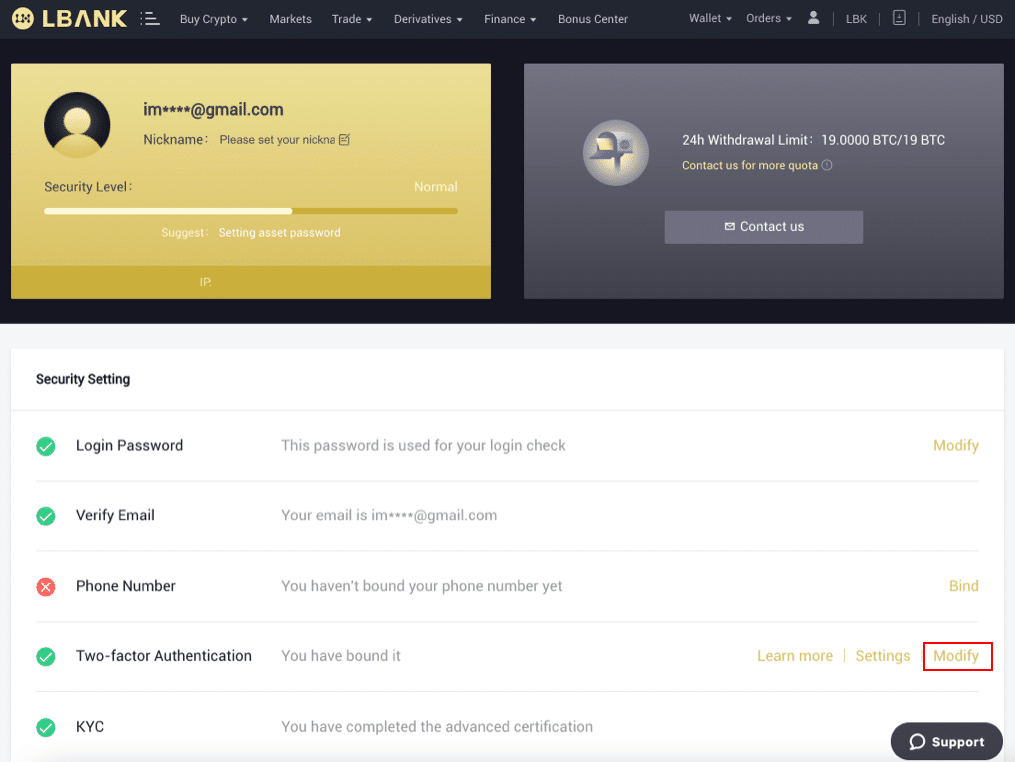
Please note that withdrawals and P2P selling will be disabled for 24 hours after you make this change.
3.1.
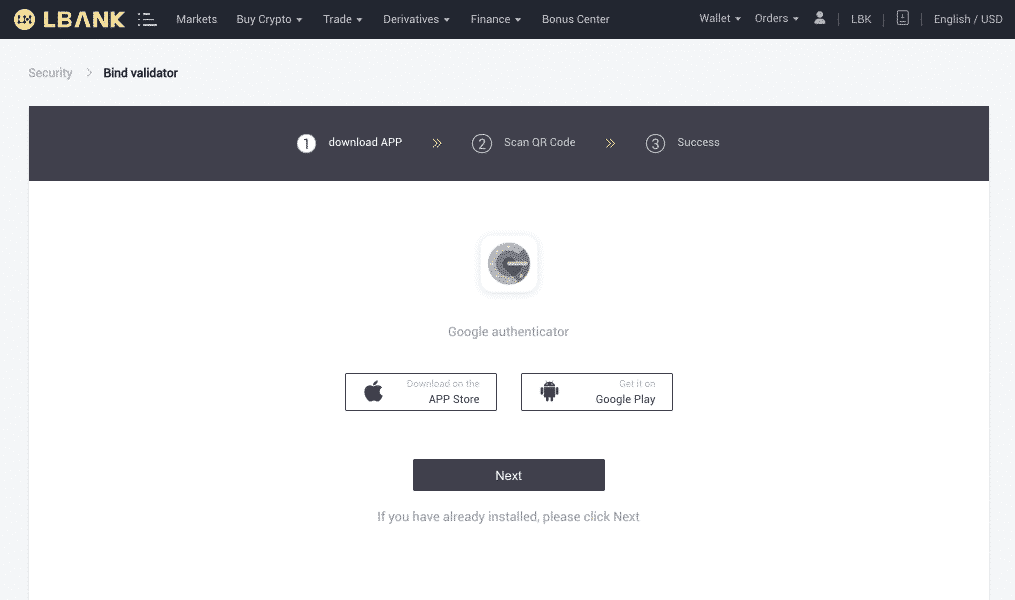
If you have already installed the Google authenticator, please click [next]. If you have no Google authenticator, please install it first.
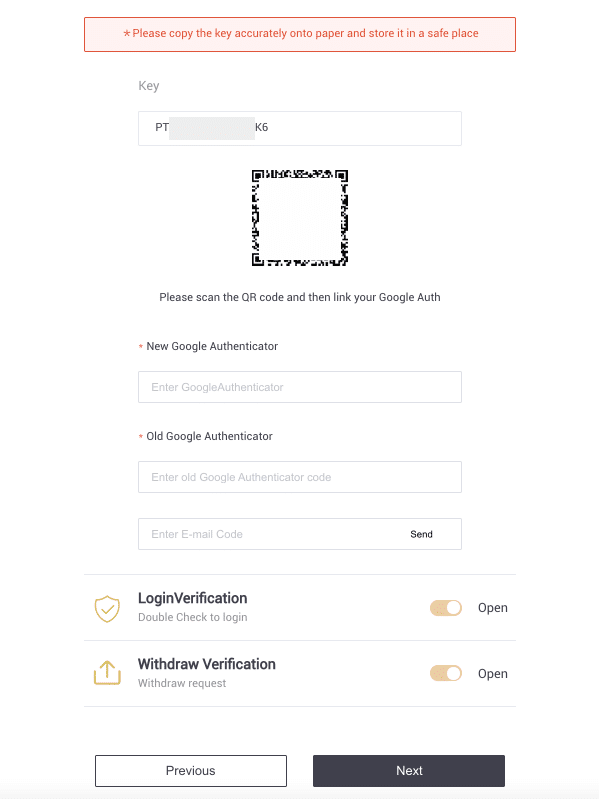
3.2 Go to your Google Authenticator app. Tap on the [+] and select [Enter a setup key] to add the backup key you just saved. Tap [Add].
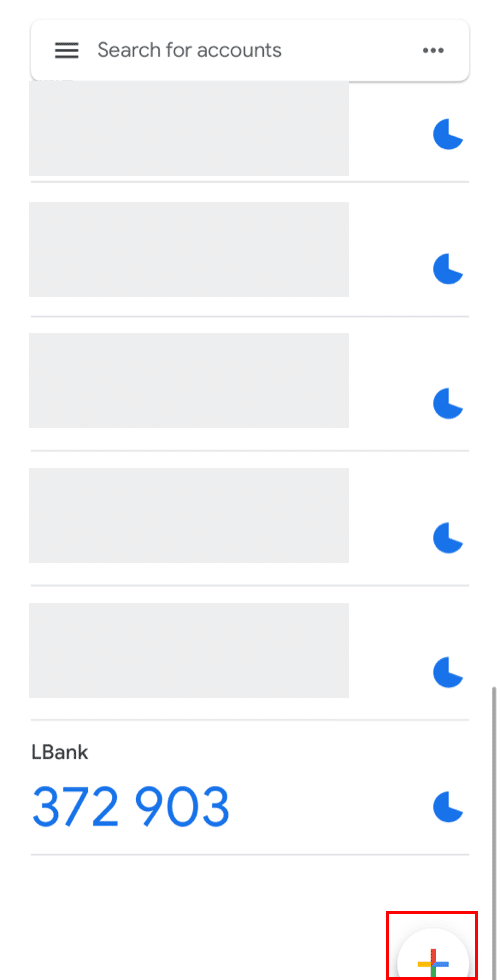
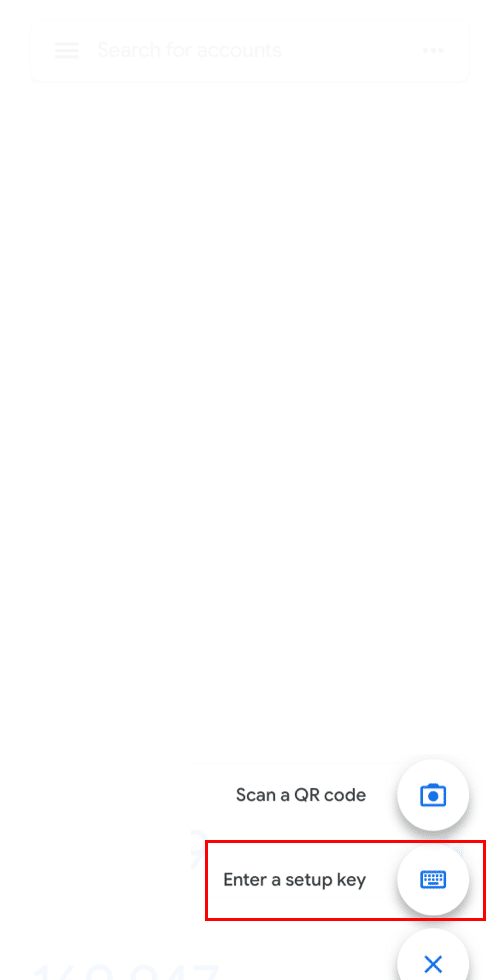
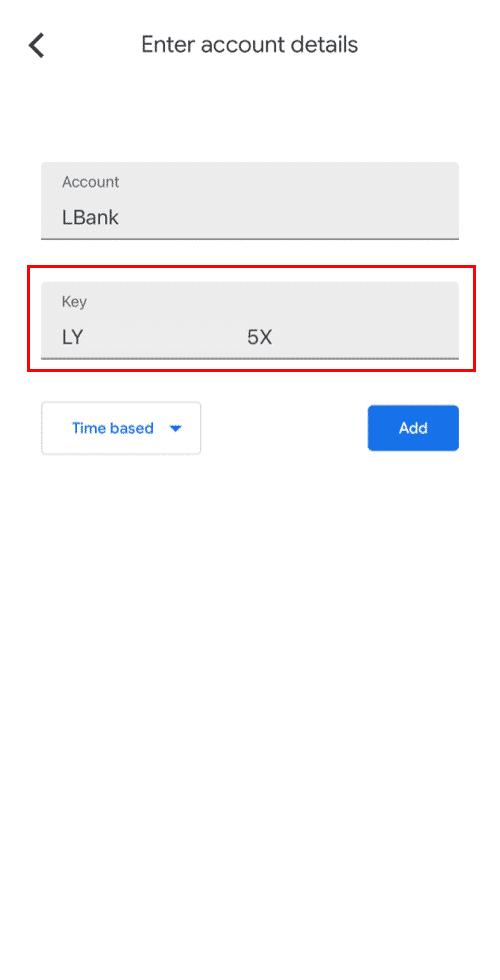
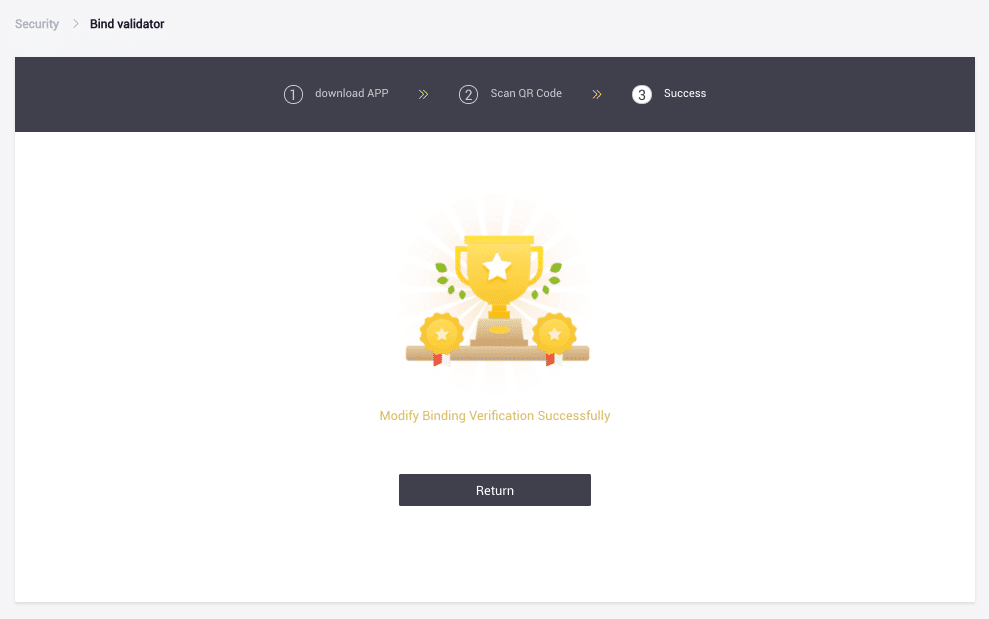
3.3 Go back to the LBank website and use your new Google Authenticator to verify the change. Tap [ Next] to complete the process.
Click here to download for iOS or Android
LBank community
Find us on:
Telegram: https://t.me/LBank_en
Twitter: https://twitter.com/LBank_Exchange
Facebook: https://www.facebook.com/LBank.info
Medium: https://medium.com/LBank
LinkedIn: https://www.linkedin.com/company/lbank
If you have problems, please contact LBank official email: service@lbank.info, and we will provide sincere, friendly and immediate service for you. We also welcome you to join LBank.info official English community to discuss the latest issue, (Telegram): https://t.me/LBank_en.