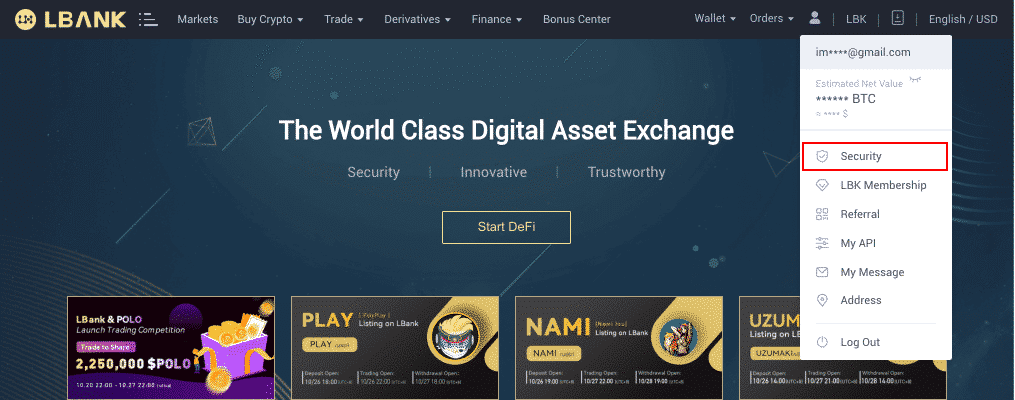
1. Log into your LBank account and click [Profile] - [Security].
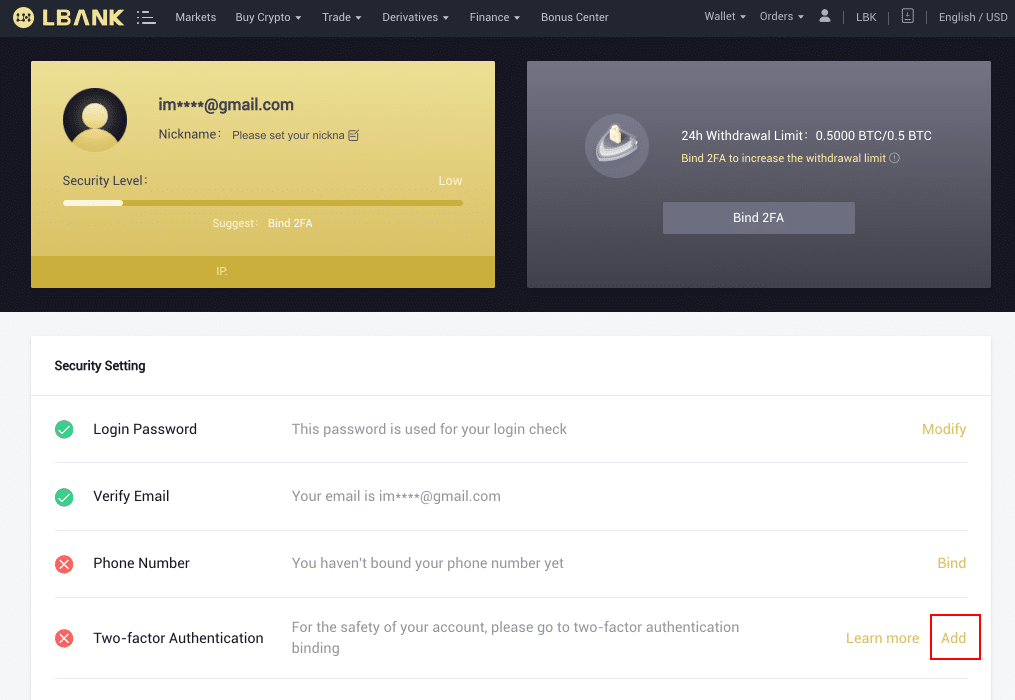
2. Click[Two-factor Authentication]- [Add].
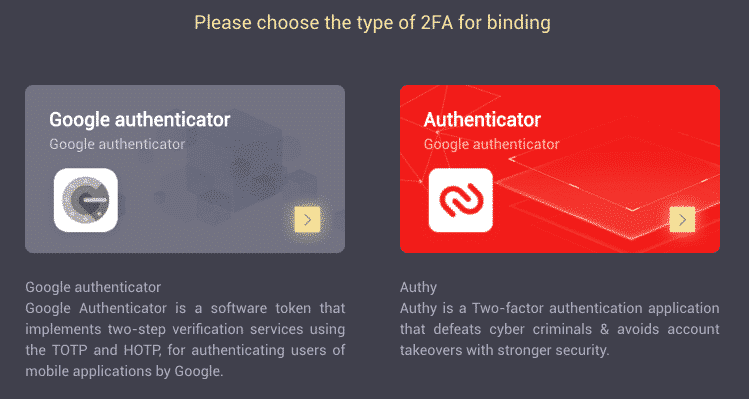
Then choose [Google Authentication】
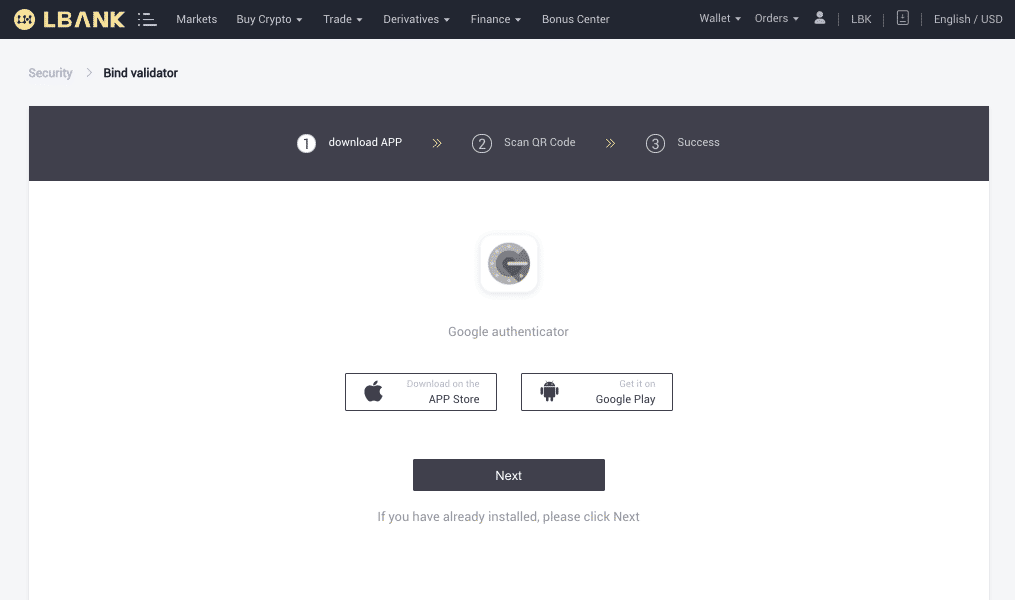
3. You will be redirected to another page. Follow the step-by-step instructions to enable Google Authenticator. Download and install the Google Authenticator App [ iOS Android ] on your mobile device. After you’ve installed the App, click [Next] to continue.
3.2. You will now see a QR code on your screen.
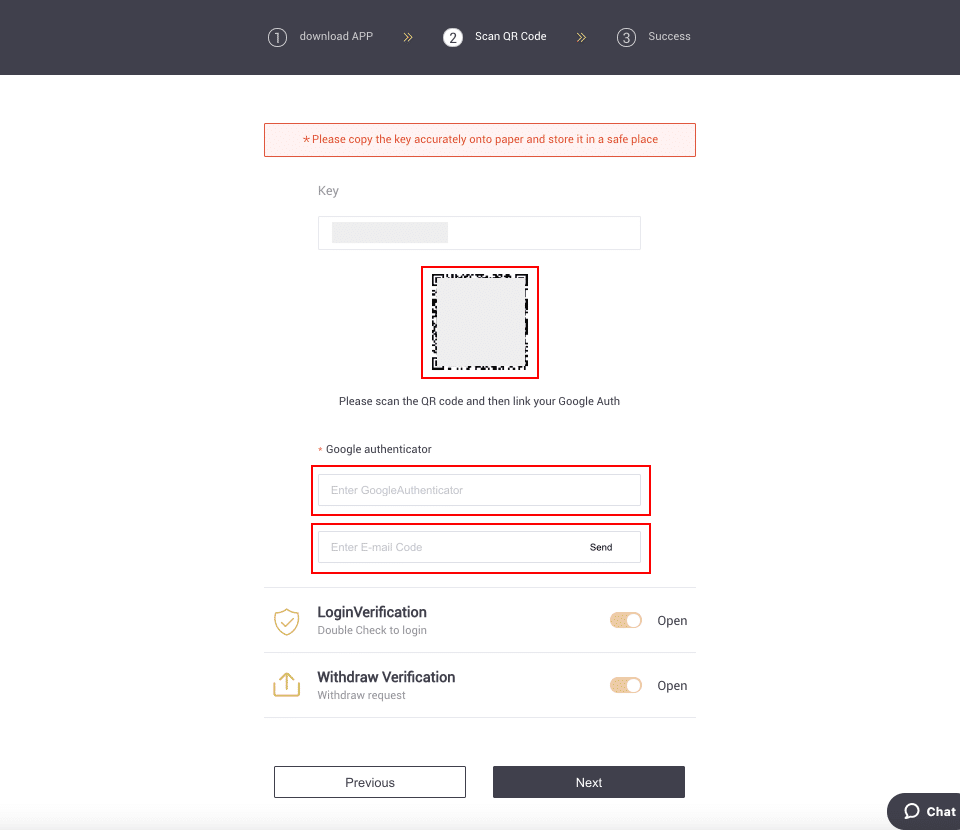
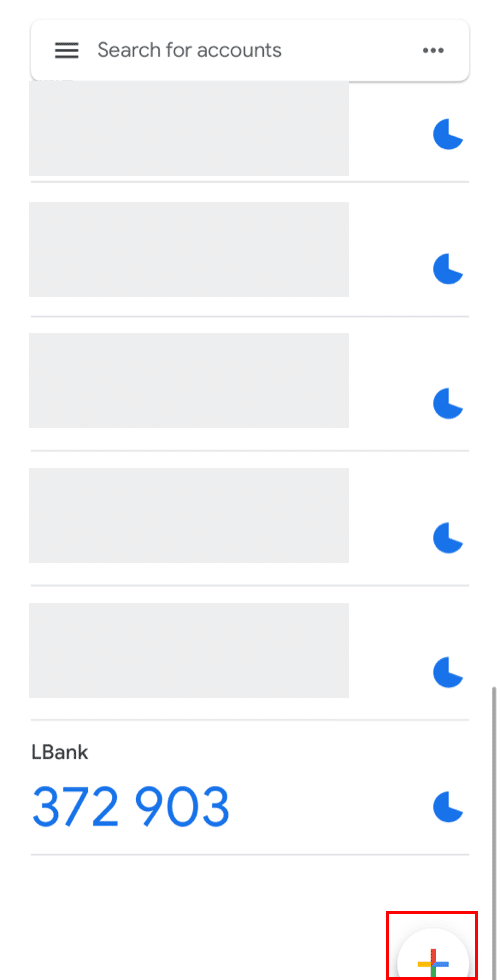
Open the Google Authenticator App and tap on the [+] button on the bottom right of your screen to scan the QR code. Then click [Next].
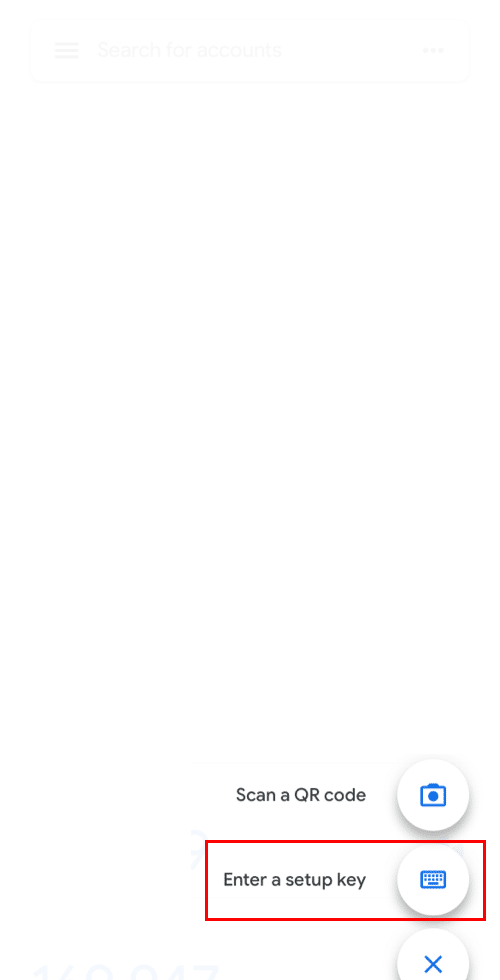
If you are unable to scan it, you can manually enter the setup key.
Tips: Save the backup key on paper. This Key will allow you to recover your Google Authenticator in case you lose your phone.
Please enter the verification code and click [NEXT]
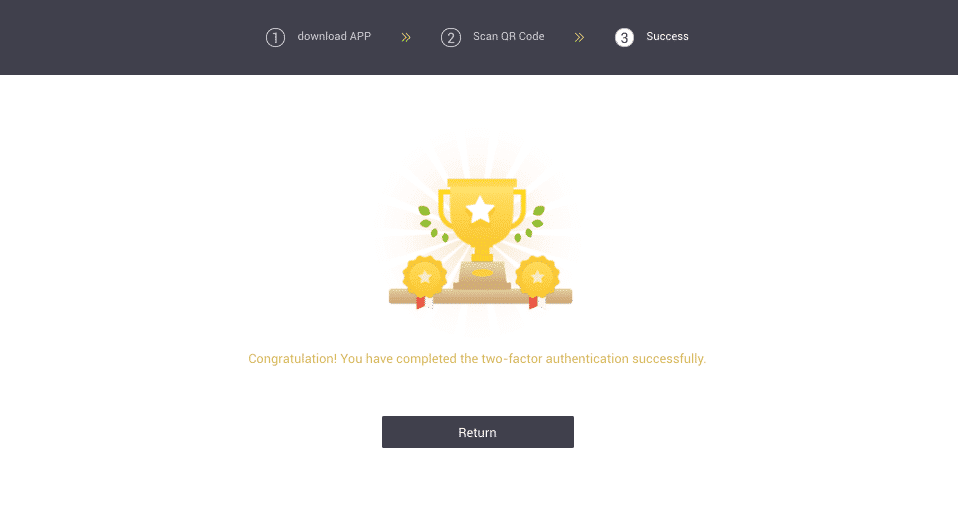
3.5. You have successfully enabled Google Authenticator to protect your account.
Click here to download for iOS or Android
LBank community
Find us on:
Telegram: https://t.me/LBank_en
Twitter: https://twitter.com/LBank_Exchange
Facebook: https://www.facebook.com/LBank.info
Medium: https://medium.com/LBank
LinkedIn: https://www.linkedin.com/company/lbank
If you have problems, please contact LBank official email: service@lbank.info, and we will provide sincere, friendly and immediate service for you. We also welcome you to join LBank.info official English community to discuss the latest issue, (Telegram): https://t.me/LBank_en.