I. Enter the copy Trading settings page
There are 2 ways to enter the copy setting page:
1. Method 1: Follow the trader for the first time
After selecting the trader you want to copy, click on "Copy" to enter the copy trading settings page.
2. Method 2: Followed the trader
a. Go to the LBank official website, click on "Copy Trading" to enter the copy trading plaza, and then click on "My Social Trade" to access the My Copy Trading page.
b. Click "My Orders" in "My Copy Trades" page and click "Edit" to enter the corresponding trader copy setting interface for editing and modification.
c. The modified copy parameters are only for new follow orders, and orders that have been successfully followed to open positions are not affected.
II. Set copying parameters in general mode
1. Select a copy futures
a. Enter the copy setting interface, click the "Edit" button to open the "Followed token pairs" interface;
b. Check the desired currency pairs for copying, or you can directly search for specific currency pairs in the search box.
c. Review the selected currency pairs on the right side and click "Confirm" to save the selection.
2. Set the copying method
a. Scroll down on the Copy Trading settings page and click on the dropdown menu for USDT to set the copy trading mode;
b. Choose between a fixed quota or a fixed ratio, and click "Confirm" to save the copy settings.
c. Enter the fixed amount or fixed ratio for each copy, or use the progress bar to enter the corresponding value.
d. Copy trading mode explanation:
i. Fixed quota: Represents the margin cost for each copy;
ii. Fixed ratio: Represents a multiple relationship between each copy and the trader.
3. Set risk controls
a. Click on the risk control button with the corresponding ">" icon to enter the risk control popup window.
b. Enter Stop Loss Ratio/Take Profit Ratio/Max Follow. You can also pull the Progress Bar to enter the corresponding value and click "Confirm" to save;
c. Risk control related data description
i. Stop Loss Ratio
- The maximum stop loss ratio is 400%;
- Copied orders will be automatically closed when the loss exceeds the pre-set ratio. Example: If you set a stop loss ratio of 10%, the system will close the order at the market price when the ratio exceeds 10%.
ii. Take Profit Ratio
- The maximum take profit ratio is 400%;
- Copied orders will be automatically closed when the profit exceeds the pre-set ratio. Example: If you set a take profit ratio of 50%, the system will close the order at the market price when the ratio exceeds 50%.
iii. Maximum following
- The maximum amount to copy is 50,000 USDT;
- The maximum amount to copy is the maximum margin you can use to copy a trade for each trading pair;
- You can no longer copy trade once the total margin of Current Order has reached the upper limit of the pre-set amount, but you remain to be the follower of that trader.You can copy the trader in the future when the total margin falls below the set amount.
4. Confirm copy trading information
a. After setting the parameters, click "Next" to enter the "Copy Information Confirmation" popup window.
b. Review and confirm the copy information. If the information is correct, click "Confirm" to save the copy settings. If there are any errors, click "Cancel" to return to the Copy Trading settings page for modifications.
5. Explanation of Generall Mode and Advanced Mode:
i. General settings apply the same values to all futures trading pairs;
ii. General mode does not support setting leverage mode and defaults to the “Follow Trader's Leverage";
iii. The normal mode of copying only supports fixed amount and fixed ratio, and does not support fixed quota;
iv. The default mode is general setting. If you want to change parameters for different futures trading pairs, set leverage mode, or set fixed quota copy trading, switch to advanced settings.
III. Set copying parameters in advanced mode
1. Switch to advanced mode to set copying parameters
On the copy trading settings page, click on the "Switch to Advanced Settings" button to switch modes.
2.Select a copy futures
a. Enter the copy setting interface, click the "Edit" button to open the "Followed token pairs" interface;
b. Check the desired currency pairs for copying, or you can directly search for specific currency pairs in the search box.
c. Review the selected currency pairs on the right side and click "Confirm" to save the selection.
3. Set leverage mode
a. Scroll down on the Copy Trading settings page and click on the dropdown menu for leverage to set the leverage mode.
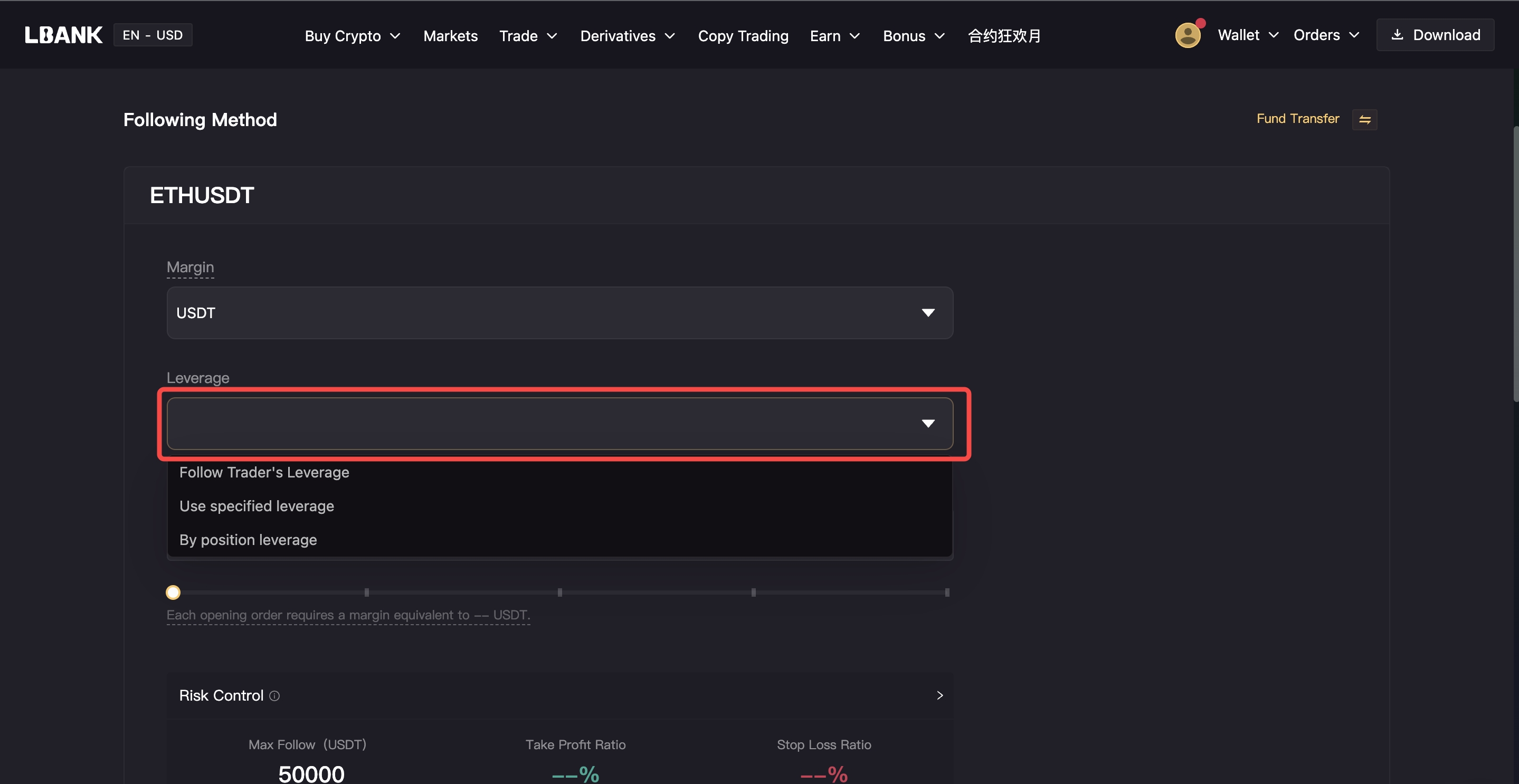
b. You can directly select either "Follow Trader's Leverage," "Use Specified Leverage," or "By Position Leverage."
c. Leverage mode description:
i. Follow Trader's Leverage
You can open a position with the leverage you choose, regardless of what leverage the trader may use.
For example: If the leverage of your BTCUSDT futures is 10X while the trader’s leverage is 20X, when the trader opens a position, you will copy his operation using the leverage of 10X. Even if you are following multiple traders, the leverage will always be 10X.
ii. Use Specified Leverage
When you select specified leverage, you will follow a trader with the pre-set leverage to open a position. Your copy trade may fail if the balance is insufficient.
For example: For example, let's assume you are copying Trader A, and you set the leverage for BTCUSDT futures at 5X, then you will copy with the leverage of 5X regardless of what leverage is used by the trader.
iii. By Position Leverage
You can open a position using the leverage of the trader. Your copy trade may fail if the balance is insufficient.
For example: let's assume the leverage used by Trader A and Trader B are 10X and 20X respectively, then you will copy the position of Trader A with the leverage of 10X and copy the position of Trader B with the leverage of 20X.
4. Set the copying method
a. Scroll down on the Copy Trading settings page and click on the dropdown menu for USDT to set the copy trading mode;
b. Choose between fixed quota, fixed amount, or fixed ratio, and click "Confirm" to save the copy settings.
c. Enter the fixed amount or fixed ratio for each copy, or use the progress bar to enter the corresponding value.
d. Copy trading mode explanation:
Fixed amount: Represents the margin cost for each copy trade.
Fixed ratio: Represents the multiplier relationship between each copy trade and the trader.
Fixed Quantity: Represents the position quantity for each copy trade.
5. Set risk controls
a. Click the ">" icon next to the Risk Controls button to open the Risk Controls popup window.
b. Enter Stop Loss Ratio/Take Profit Ratio/Max Follow. You can also pull the Progress Bar to enter the corresponding value and click "Confirm" to save;
c. Explanation of Risk Controls Data
i. Stop Loss Ratio
- The maximum stop loss ratio is 400%;
- Copied orders will be automatically closed when the loss exceeds the pre-set ratio. Example: If you set a stop loss ratio of 10%, the system will close the order at the market price when the ratio exceeds 10%.
ii. Take Profit Ratio
- The maximum take profit ratio is 400%;
- Copied orders will be automatically closed when the profit exceeds the pre-set ratio. Example: If you set a take profit ratio of 50%, the system will close the order at the market price when the ratio exceeds 50%.
iii. Maximum follower
- The maximum amount to copy is 50,000 USDT;
- The maximum amount to copy is the maximum margin you can use to copy a trade for each trading pair;
- You can no longer copy trade once the total margin of Current Order has reached the upper limit of the pre-set amount, but you remain to be the follower of that trader.You can copy the trader in the future when the total margin falls below the set amount.
6. Confirm copy trading information
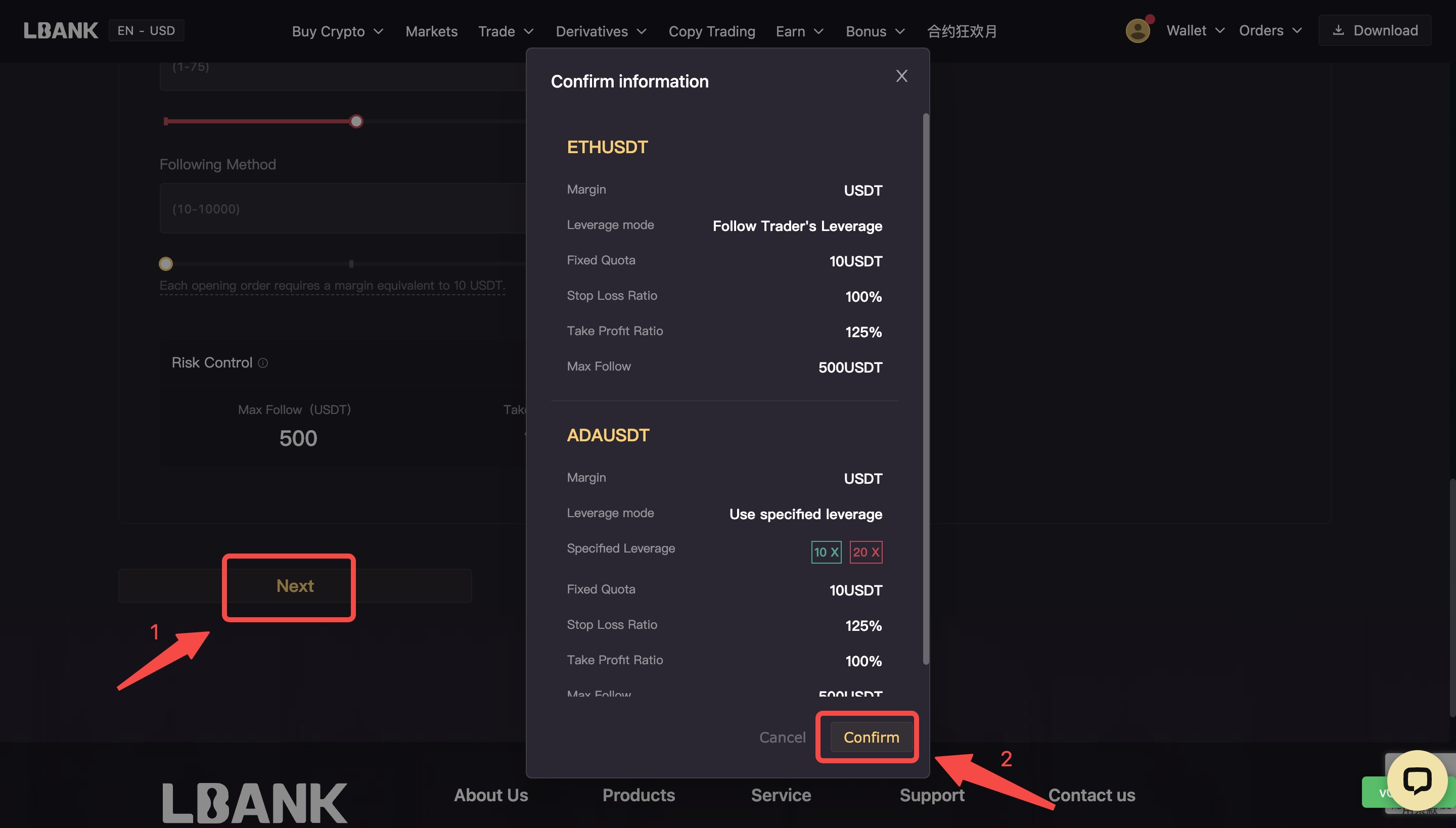
a. After setting the parameters, click "Next" to enter the "Confirm Information" popup window.
b. Review and confirm the copy trading information. If the information is correct, click "Confirm" to save the copy trading settings.
c. If there are any errors, click the "Cancel" button to return to the copy trading settings page and make changes.
LBank Community
Telegram | Twitter | Facebook | Discord | Medium | LinkedIn
Click here to download for iOS or Android
If you have problems, please contact LBank official email: service@lbank.info, and we will provide sincere, friendly and immediate service. We also welcome you to join LBank official English community to discuss the latest issue (Telegram): https://t.me/LBank_en.
Risk Warning: Investing in digital assets is extremely risky. Digital asset prices are subject to high market risk and price volatility. The value of your investment may go down or up, and you may not get back the amount invested. You are solely responsible for your investment decisions and LBank is not liable for any losses you may incur. Past performance is not a reliable predictor of future performance. This material shall not be construed as financial advice in any case. LBank reserves the right in its sole discretion to amend or change or cancel this announcement at any time and for any reason without prior notice.